

WordPress Theme File Download Package Composition Guide
🗂️ Understanding the Structure of Your WordPress Theme Package
After purchasing and downloading a WordPress theme from ThemeForest or the developer’s official website, you’ll usually get a full package (ZIP file).
This package includes not only the main theme file but also documentation, licensing information, and additional resources.
Let’s use the Ridez theme as an example to explore what’s inside and how to use each part effectively.
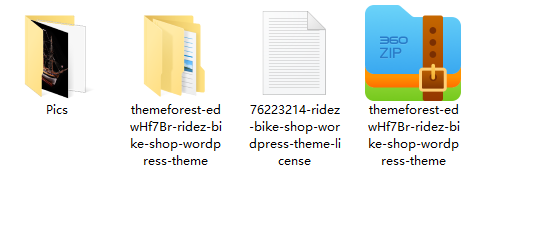
📦 1. File Structure Overview
When you extract the downloaded ZIP file (for example: ridez-full), you’ll typically see a structure like this:
ridez-full
│
├── guide
├── Licensing
├── plugins
└── ridez-theme.zip
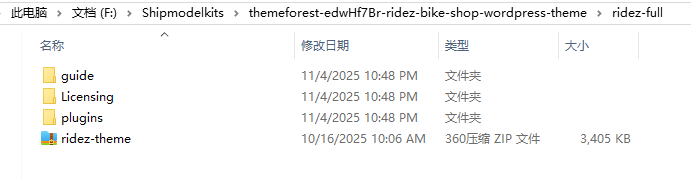
Here’s what each folder or file means 👇
📘 2. guide Folder (Documentation)
This folder contains the official user guide, which explains how to:
- Install the theme
- Import demo content
- Install required plugins
- Configure theme settings and fix common issues
👉 How to open and read the guide:
- Double-click to open the
guidefolder. - Locate a file named
index.htmlordocumentation.html. - Right-click → choose “Open with Microsoft Edge.”
- If the document is in English, right-click anywhere on the page → select “Translate to [Your Language]” to read it easily in your preferred language.
💡 Tip:
Always read the official documentation before installation. Many common problems (like failed demo import or layout issues) can be solved by following the guide.
🧾 3. Licensing Folder (License & Purchase Info)
This folder contains your license and purchase information, including:
- The License Terms
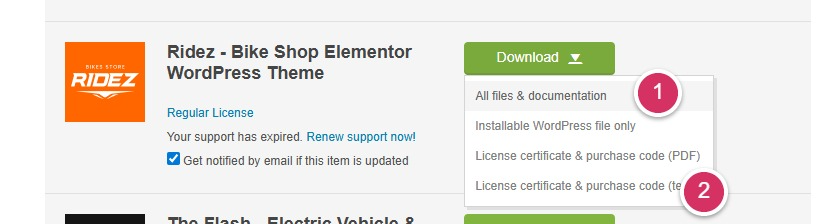
This document serves as proof of your legitimate purchase of a genuine license. The installation authorization activation code is located within the file downloaded from the License certificate & purchase code (text) submenu 2 under the Personal Theme Download menu.
It is a TXT text file. Upon opening, it displays a string of numeric serial numbers, as shown below:
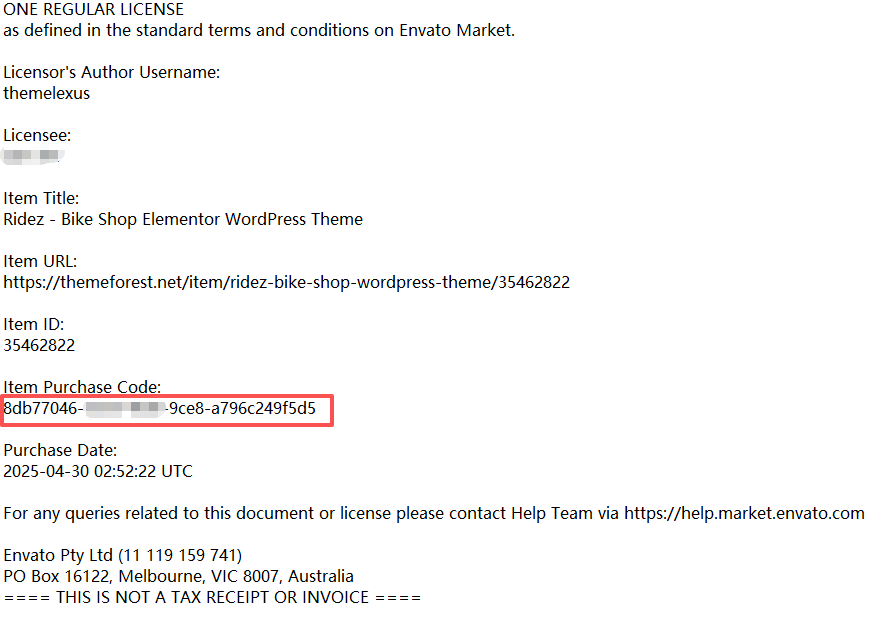
Save this file carefully. When installing themes or importing demo data later, you may be prompted to enter the activation code highlighted in the red box (some themes do not require activation, but the vast majority do). Each activation code corresponds to a single website domain. If you activated it on a test site and need to transfer the license to your live site’s domain, first deactivate the activation on the test site.
🔌 4. plugins Folder (Bundled Plugins)
Some premium themes include a plugins folder containing the required or recommended plugins, such as:
- Elementor or WPBakery Page Builder
- Revolution Slider
- WooCommerce extensions
These plugins help your site look and function exactly like the demo.
⚙️ Installation Recommendation:
In most cases, you don’t need to install plugins manually.
Once the theme is activated in your WordPress dashboard, you’ll see a message like “Install Required Plugins.”
Click “Begin Installing Plugins” and WordPress will handle the rest online.
👉 Only use this local plugins folder if your hosting environment prevents online installation.
🎨 5. ridez-theme.zip (Main Theme File)
This is the core theme file you actually upload to your WordPress website.
Installation Path:WordPress Dashboard → Appearance → Themes → Add New → Upload Theme
Then select the file ridez-theme.zip and click Install Now.
⚠️ Important:
Do not upload the entire “ridez-full” folder — only upload the ZIP file named after the theme.
Otherwise, you’ll see an error message like:
“The package could not be installed. No valid theme found.”
📂 6. Other Possible Files
Some full theme packages may also include:
- demo-content → XML files containing demo data for import
- child-theme → Recommended if you plan to customize code or styles
- PSD / design files → Design references used by developers
These extras are optional.
Most users can install demo content and plugins directly from the WordPress dashboard without manually uploading these files.
✅ 7. Summary Table
| Item | Purpose | Required |
|---|---|---|
ridez-theme.zip | Main installable theme file | ✅ Yes |
guide | Documentation and user manual | ✅ Strongly recommended |
Licensing | License & purchase certificate | ✅ Must keep |
plugins | Optional plugin source files | ⚙️ Only if needed |
Other files (demo, child-theme) | Demo data / child theme | 🔄 Optional |
💡 Best Practices
- Read the
guidefirst — understand the installation process. - Use Microsoft Edge’s built-in translator if the guide is in English.
- Install plugins and demo content online whenever possible.
- Keep your license folder safe for future updates and support.
🧭 In one sentence:
👉 “Read the guide before installing; install online whenever possible.”
Theme documentation (installation guide) typically includes tutorials for configuring settings in various locations that will be needed later on. When you encounter issues, you can return to carefully review the theme documentation.
By mastering the structure and purpose of your theme files, you’ll make your WordPress setup smoother, faster, and more professional.
Author Profile

- Freely.work Founder,15 years as a freelancer/digital nomad.Marketing consultant for Fortune Global 500 companies, digital marketing expert.
Latest entries
 December 17, 2025Mastering Google Search Console (GSC)
 December 16, 2025Yoast SEO Plugin: Overview, Benefits, and Installation Guide
 December 16, 2025What Is an SEO Plugin?
 December 2, 2025Adding Variable Products with Multiple Configurations